Single Degree of Freedom Vibration Equations:
Parameter |
Symbol |
Units |
Example Equation |
|---|---|---|---|
Linear Spring Stiffness |
|
|
E.g. Rod in Tension/Compression |
Torsional Spring Stiffness |
|
|
E.g Rod in Torsion |
Mass of the Part |
|
|
|
Mass Moment of Inertia |
|
|
Function of cross-section. |
Polar Moment of Area |
|
|
Function of cross-section. |
Forcing frequency |
|
|
|
Damping Ratio |
|
|
|
: no-damping system : under-damped system : critically-damped system : over-damped system |
|||
Natural Angular Frequency |
|
|
|
Natural Frequency |
|
|
|
Period of Oscillations |
|
|
|
Critical Damping |
|
|
|
Damping Coefficient |
|
|
|
Damped natural frequency |
|
|
|
Amplification Factor |
|
|
|
Single Degree of Freedom (SDOF) Model
There are two Briefcases in the image below, with the Function-Blocks that are “inside” each.
•Kinematics Briefcase (at the top) - it holds the Function-Blocks for the Kinematic model.
•Dynamics Briefcase (at the bottom) - it holds the Function-Blocks for the Dynamic model.
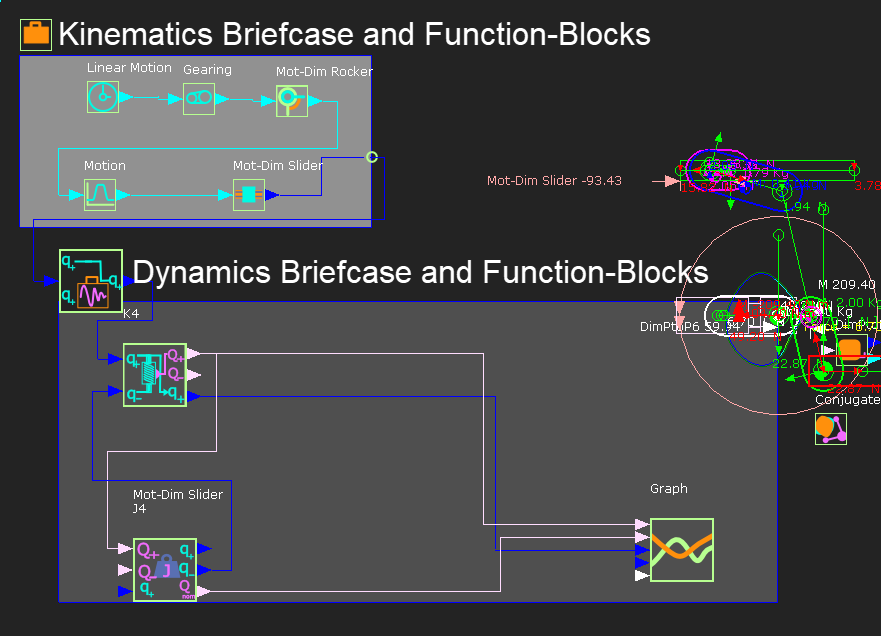
Kinematics Briefcase and Function-Blocks
In the image above, you can see that there are two Motion-Dimension FBs and two kinematic-chains - one motion-dimension controls the motion of the cam and its kinematic-chain, and the other motion-dimension controls the motion of the Follower and its kinematic-chain.
How to connect the Kinematic-FBs: Cam's kinematic-chain : Connect wires from the Linear-Motion FB > wire > Gearing FB > wire > Motion-Dimension FB (Cam) ... Connect the wire at the output of the Motion-Dimension (Cam) to the input-connector of the ... Follower's kinematic-chain : ... Motion FB > wire > Motion-Dimension FB (Follower) Connect a wire from the output-connector of the Motion-Dimension FB (Follower) to an input on the Dynamics-Briefcase FB. |
Dynamics Briefcase and Function-Blocks
STEP 1:Make sure that wires connect the Kinematic FBs as we have described above, and show in the image below. STEP 2:From the Dynamics menu, add to the graphics-area, a Dynamics Briefcase FB, an Inertia FB, and a Spring/Damper FB. STEP 3:From the Kinematic FB toolbar or Function-Blocks menu, add a Graph FB STEP 4:Open the Dynamics-Briefcase dialog. STEP 5:Click the Inertia FB, Spring/Damper FB, and the Graph FB to add them to the Dynamics-Briefcase. STEP 6:Select 64x64 as the icon size (to help you connect the wires) STEP 7:Connect wires to the input and output-connectors - see the wires in the image below. STEP 8:Edit the parameters in the FBs STEP 9:Add Friction to the important Joints. |
STEP 1: